Quick start: Open Pay Tax Online → Search property → Review demand → Pay with Razorpay → Download receipt.
Pay Tax Online Now
1
Open Pay Tax

Click Pay Tax Online in the website header.

2
Search Property

Find your property by Ward, Property ID, Name, or Receipt No.

3
Review Details

Check demand amount and click Pay Online Now.

4
Razorpay Checkout

Complete UPI / Card / Netbanking payment securely.

5
Get Receipt

Download or print the system-generated receipt.

Step 1 Open the Pay Tax page

  1. Go to nppnanpara.com.
  2. In the top green bar or main menu, click Pay Tax Online.
  3. You will open the Property Tax Payment page (no login required).
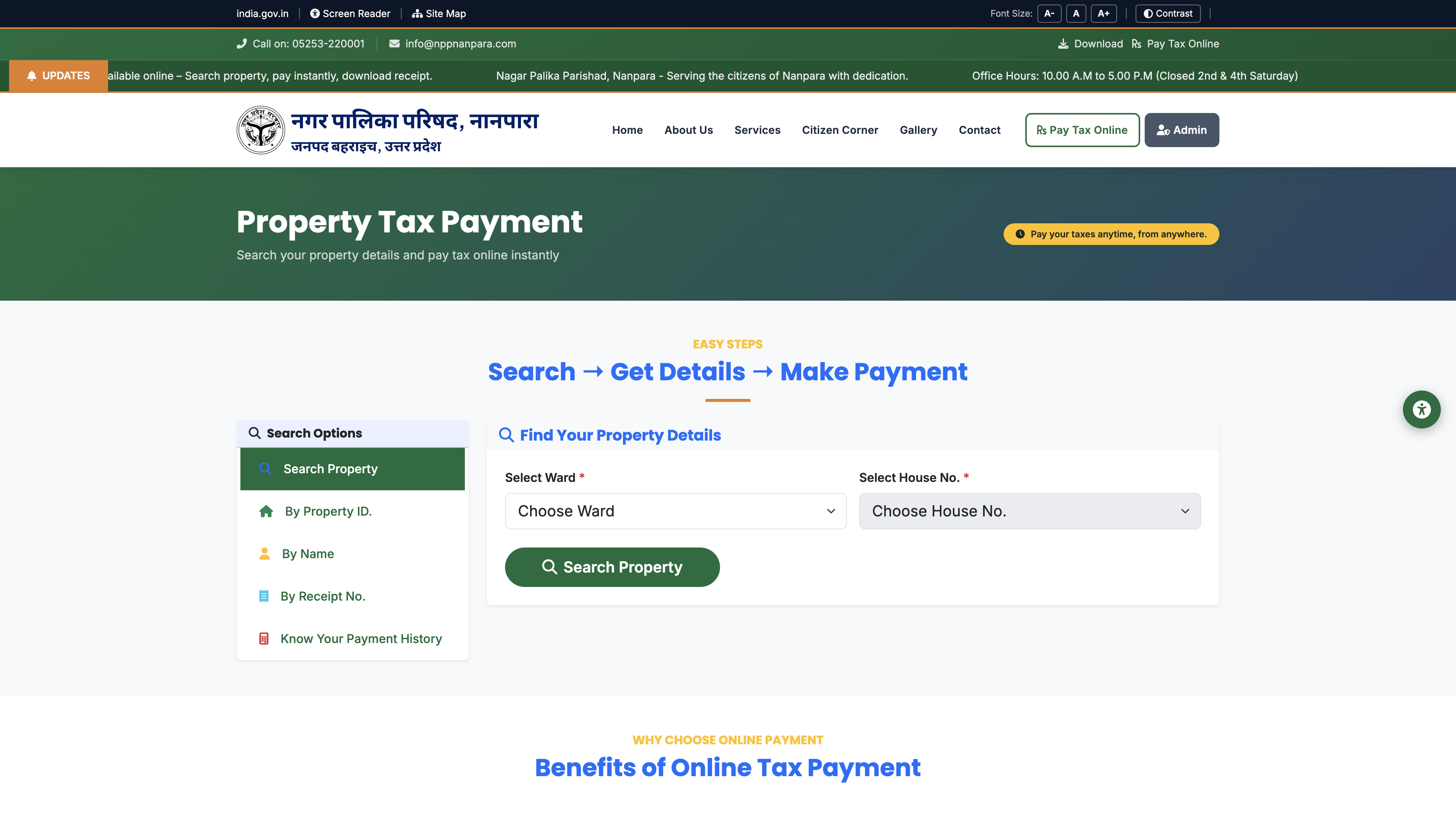
Property Tax Payment search page
Screenshot: Property Tax Payment — Search Options

Step 2 Search your property

Use any one of these search options from the left menu:
  • Search Property — Select Ward, then House No., then click Search Property.
  • By Property ID — Enter your Unique Property ID and search.
  • By Name — Select Ward and type the owner name.
  • By Receipt No. — Enter an earlier receipt number.
  • Know Your Payment History — View past payments (Cash / Online).
If search finds no property, verify Ward / House No. or contact the Nagar Palika office (05253-220001).

Step 3 Review property & tax details

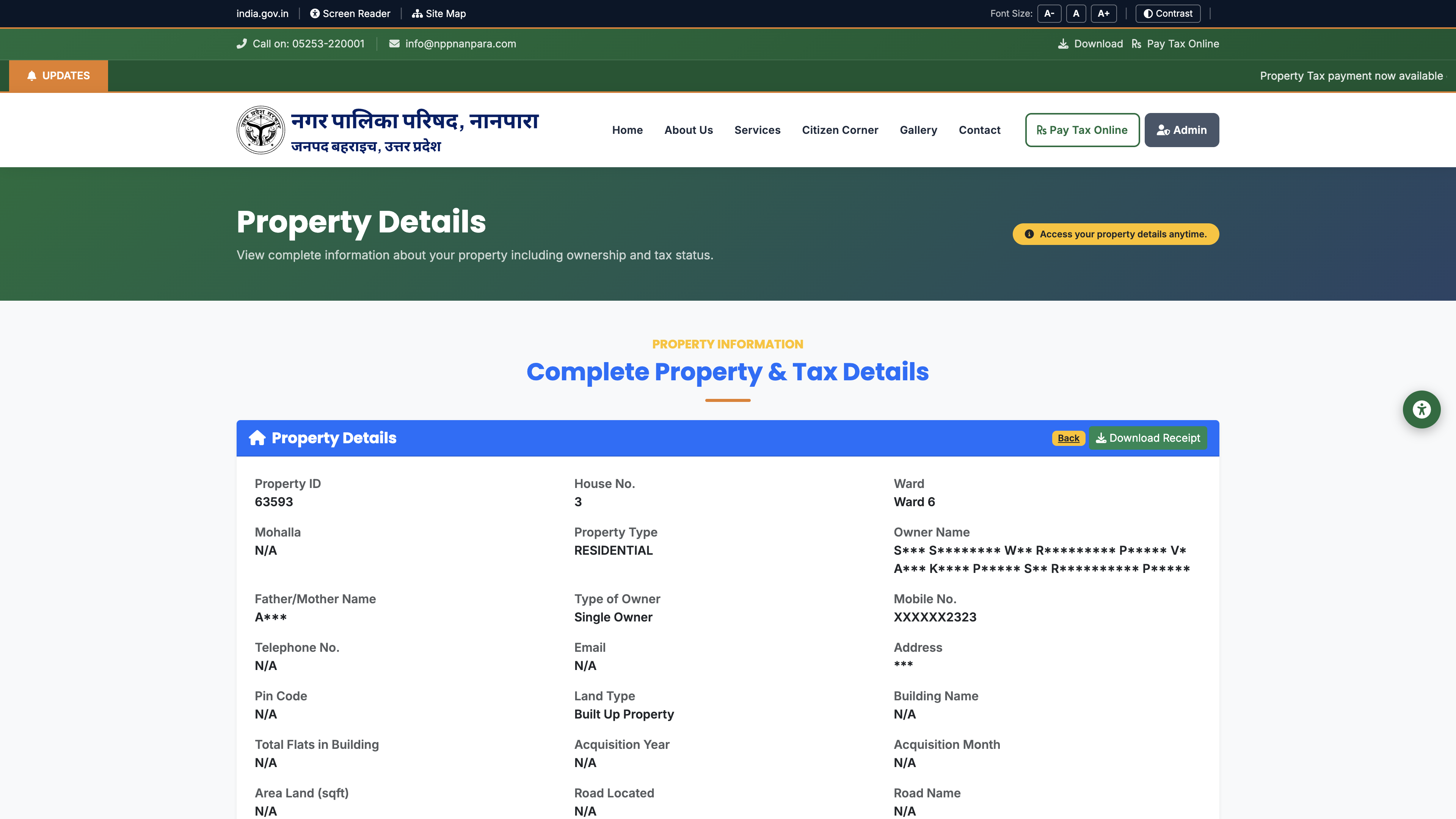
  1. Open the property details page from search results.
  2. Review Property Details, Tax Calculation Summary, and Year-wise Demand.
  3. Confirm the outstanding amount shown on the green Pay Online Now button.
  4. Click Pay Online Now to start payment.
Property details with Pay Online button
Screenshot: Property Details — use Pay Online Now to continue

Step 4 Complete payment on Razorpay

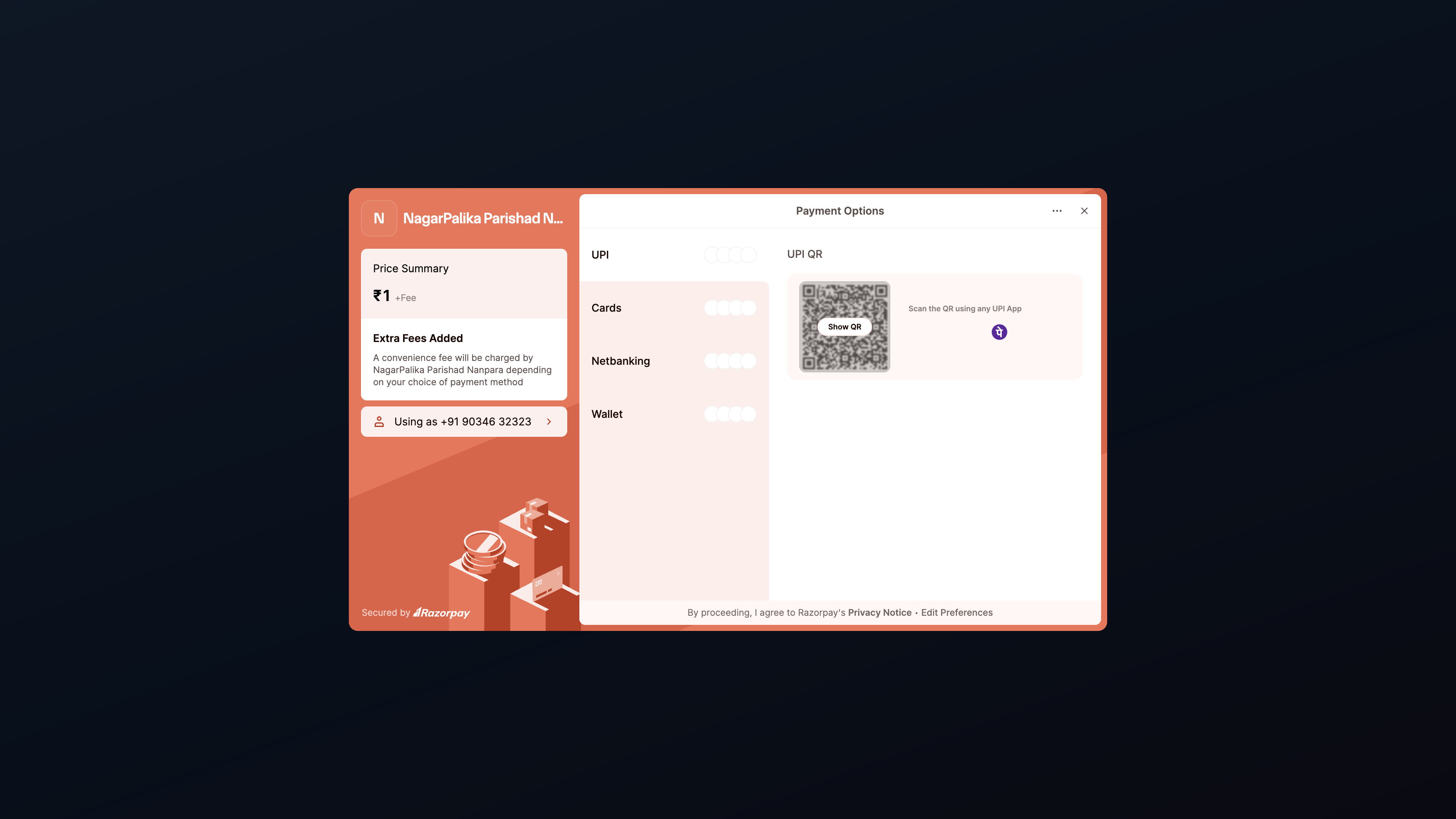
  1. A secure checkout page opens for NagarPalika Parishad Nanpara.
  2. Razorpay Checkout opens automatically (or click Pay Now).
  3. Choose UPI, Cards, Netbanking, or Wallet.
  4. Complete the payment on your bank / UPI app.
  5. Do not close the browser until verification finishes.
Razorpay checkout for Nanpara
Screenshot: Razorpay live checkout (UPI / Cards / Netbanking)
Payments are processed by Razorpay. If you cancel the popup, you can return to property details and try again.

Step 5 Download your receipt

  1. After successful payment you are redirected to a signed receipt page.
  2. Note the Receipt Number for your records.
  3. Download / print the receipt PDF if offered.
  4. You can also open the property again later and use Download Receipt or search by Receipt No.

Help & tips

  • Online payment works 24×7 from mobile or desktop.
  • Keep your Property ID / House No. and mobile number ready.
  • Failed payment: wait a few minutes, check bank SMS, then retry or contact the office with the transaction ID shown on screen.
  • Office hours: 10:00 A.M. – 5:00 P.M. (closed 2nd & 4th Saturday) · Phone: 05253-220001 · Email: info@nppnanpara.com